
I set up Claude Code on my iPhone - here’s exactly how to do it in 10 minutes.

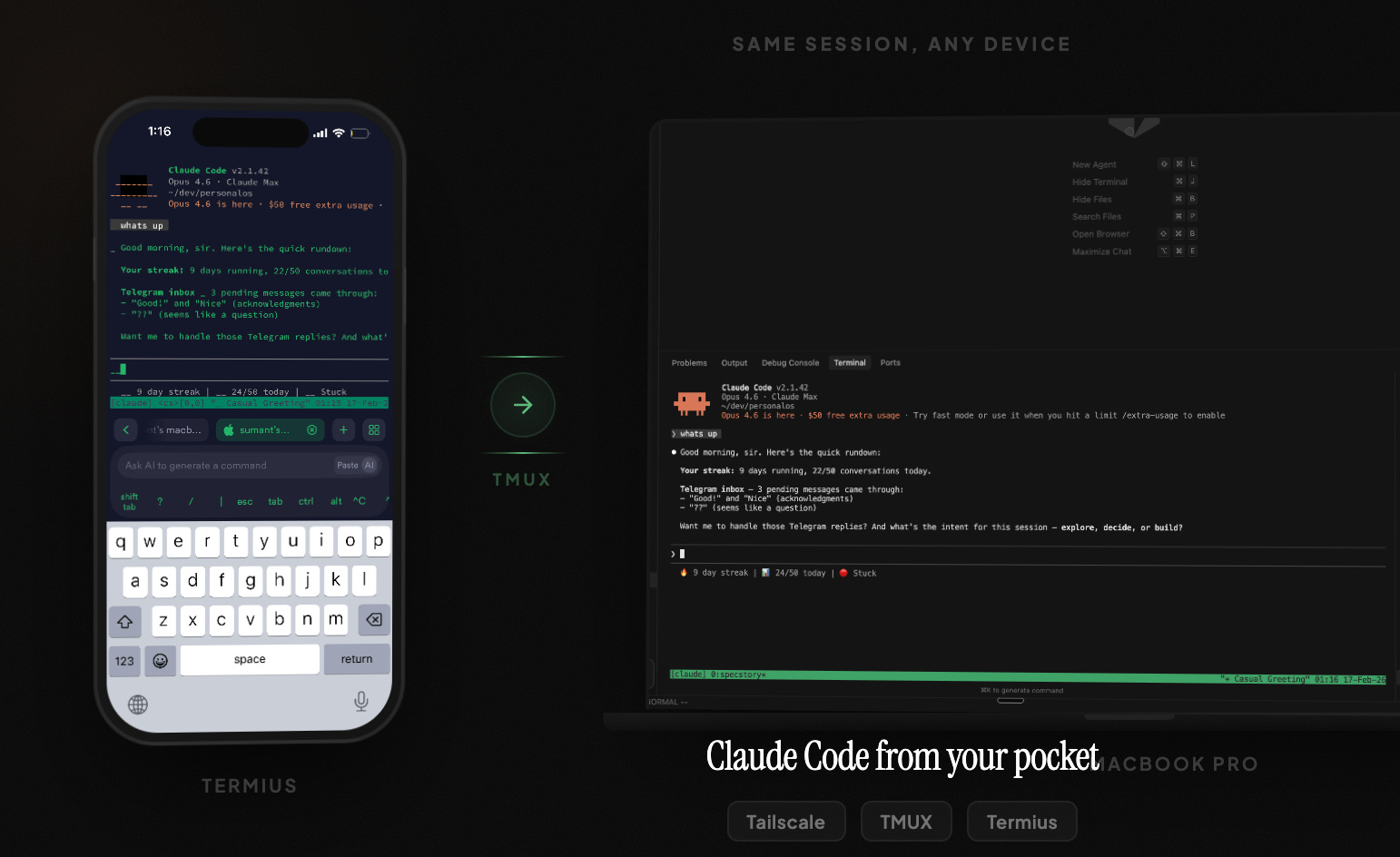
The official Claude app has Claude Code now. But you can’t pick up a session between your laptop and your phone without syncing through GitHub. Switch devices and the flow breaks. It’s a handoff, not a live connection, and handoffs kill momentum.
I wanted to type a prompt on my phone from bed and watch Claude Code run on my MacBook Pro across the room. Same session, same context, happening live. Turns out the setup takes about 10 minutes. Once it’s done, it just works. Every day. No syncing, no GitHub in the middle.
If you can copy and paste, you can do this.
Why not just use the Claude app?
I tried. It’s fine for quick questions. But if you’re building things with Claude Code (running commands, editing files, using MCP tools) the mobile app doesn’t cut it.
With the Claude app, you start on desktop and can’t continue on your phone without going through GitHub. One device at a time. No MCP servers on mobile. Starts fresh each time.
With this setup, your phone and desktop share the exact same terminal session. Both see it at the same time. Every MCP server your Mac has, your phone gets too. And the session stays alive even when you disconnect, so you come back hours later and everything’s still there.
The part that sold me: both devices connected simultaneously. I type something on my phone from the couch and watch it run on my laptop screen. Like screen sharing, but for your terminal.
What you need before you start
Get all of this sorted before you touch Terminal. Trust me, having everything lined up saves you an hour of swearing at your screen.
The machine - Any Mac or Linux box that stays on. Doesn’t need to be powerful. I set this up on my MacBook Pro, but an old laptop would work fine.
Three things to install:
Tailscale (free) creates a private network between your phone and your Mac. Your phone can reach your Mac from anywhere, whether you’re on the couch or in another country. Sign up at tailscale.com. Takes two minutes.
TMUX keeps your terminal session alive even when you disconnect. This is what lets you start Claude Code on your phone, lock your phone, go make coffee, come back, and find everything still running.
Termius (free on iPhone) is the SSH app that connects your phone to your Mac’s terminal.
Three tools. Everything else you already have.
The mistake that’ll trip you up
I’m putting this upfront because I almost fell for it.
When you download Termius, it pushes you hard toward the premium plan. Don’t buy it. The free plan has everything you need. I was seconds away from paying before I realised there’s no reason to. Save your money.
The actual setup
Step 1 - Install Tailscale on both devices (2 min)
On your Mac:
brew install tailscale
Or just download it from tailscale.com. Sign in with Google or GitHub, whatever’s easiest.
On your iPhone: Download Tailscale from the App Store. Sign in with the same account.
Once both are signed in, they can see each other. Note your Mac’s Tailscale IP, it’ll look like 100.x.y.z. You’ll find it in the Tailscale menu bar icon on your Mac.
Step 2 - Enable SSH on your Mac (1 min)
Go to System Settings > General > Sharing and toggle Remote Login to ON.
This lets your phone connect to your Mac’s terminal remotely. One toggle.
Step 3 - Install TMUX (1 min)
brew install tmux
TMUX is a terminal multiplexer. In plain english: it keeps your terminal session running even when you close the app or lose connection. Start Claude Code on your phone, lock your phone, go do something, come back and it’s all still there.
Step 4 - Set up Termius on your iPhone (3 min)
Download Termius from the App Store. Free plan. Don’t pay.
This is where I hit two gotchas back to back. Saving you the trouble:
Adding your Mac as a host:
Tap + to create a new host
Hostname: Your Mac’s Tailscale IP (
100.x.y.z)Username: Your Mac username
Go into the host Settings and switch the connection type to SSH. It defaults to something else and won’t connect until you change this. I sat there confused for a few minutes before figuring it out.
Setting up SSH keys (passwordless login):
This one’s hidden. SSH keys used to be in Settings. They moved to Profile > SSH.id and there’s no obvious indication. Took me a minute to find it.
Go to your Profile tab in Termius
Set up your SSH.id username (pick whatever)
On your Mac terminal, run these three lines:
mkdir -p ~/.ssh && chmod 700 ~/.ssh
curl -fs https://sshid.io/YOUR_USERNAME >> ~/.ssh/authorized_keys
chmod 600 ~/.ssh/authorized_keys
Replace YOUR_USERNAME with whatever you picked in step 2.
The chmod commands matter more than you’d think. SSH is paranoid about file permissions. If they’re too open, it silently refuses to use the key. No error message, just asks for a password and you sit there wondering what went wrong. Don’t skip these lines.
Test the connection from Termius. Should log you in without asking for a password.
Step 5 - Run Claude Code (1 min)
From Termius on your iPhone:
tmux new -s claude
claude
That’s it. You’re running Claude Code from your phone.
Daily usage
Starting a session:
tmux new -s claude
claude
Disconnecting (session stays alive): Close Termius, or press Ctrl+B then D to detach cleanly. Either way, the session keeps running on your Mac.
Reconnecting later:
tmux attach -t claude
One thing that tripped me up: it’s new -s (s for session name) but attach -t (t for target). Different flags for different commands. I kept typing attach -s and getting an “unknown flag” error for longer than I’d like to admit.
Using both phone and desktop at the same time:
Run tmux attach -t claude from both your phone and your Mac’s Terminal. Both screens mirror each other in real time. Type a prompt on your phone from the couch, watch it run on your laptop. Both devices, same session, live.
Every mistake I made so you don’t have to
Almost paid for Termius premium. Don’t. Free plan has everything.
Couldn’t find SSH keys in Termius. They moved from Settings to Profile > SSH.id. Not obvious at all.
Connection kept failing. The host connection type defaults to something that isn’t SSH. You have to manually switch it in host settings.
Kept typing
attach -sinstead ofattach -t. Different flags.new -s,attach -t. Just remember it.Got “No such file or directory” when attaching. No session existed yet. You need to
newbefore you canattach. Obvious in hindsight.Skipped the chmod commands. SSH silently refused the key. No error, just asked for a password. Those lines aren’t optional.
That’s it
Ten minutes to set up. After that, Claude Code lives in your pocket. Same session on any device, live mirroring, no syncing in between.
The official Claude app works for quick questions. For building things, this is the way.